Fresh named a ClearBox Intranet Choice Winner 2025
ClearBox Consulting Report & Intranet Choices We’re thrilled to share that Fresh Intranet ...
Starting from scratch takes time. SharePoint templates let you skip the blank page and begin with something already structured, designed, and ready to customize.
Whether you’re creating a new team site, building a communication hub, or setting up a document library, templates give you a head start. They’re one of SharePoint’s most practical features for anyone who doesn’t want to reinvent the wheel every time they create something new.
SharePoint templates are pre-built starting points for sites, pages, and document structures. Instead of building from nothing, you select a template that matches your purpose and customize it from there.
Templates save time and promote consistency. When everyone starts from the same foundation, the results look more professional and follow similar patterns. That’s particularly valuable in larger organizations where many people create SharePoint content.
SharePoint offers templates at several levels: site templates for entire sites, page templates for individual pages, and list templates for data structures. Each serves a different purpose, but the principle is the same: start with something useful, then make it your own.
Site templates create entire SharePoint sites with pre-configured pages, navigation, web parts, and sometimes sample content. Microsoft provides built-in options, and organizations can create custom site templates for their specific needs.
Common SharePoint site templates include:
Team site: Designed for collaboration within a group. Includes a document library, notebook, and basic pages. Connects naturally with Microsoft Teams.
Communication site: Built for broadcasting information to a wider audience. Includes layouts optimized for news, events, and showcasing content. Three built-in designs: Topic, Showcase, and Blank.
Project management: Structured for tracking projects with task lists, timelines, and status pages.
Department site: Organized for departmental information with sections for team members, resources, and news.
Event site: Configured for promoting and managing events with registration, schedules, and speaker information.
Training site: Set up for learning content with course organization, progress tracking, and resource libraries.
Microsoft regularly adds new site templates through the SharePoint look book and template library. These give you modern, professionally designed starting points.
Page templates work within existing sites. They provide layouts and structures for individual pages, helping you create consistent content without designing each page from scratch.
You might use page templates for news articles (so every announcement follows the same format), department pages (so each team’s page has similar sections), or landing pages (so key entry points maintain consistent design).
SharePoint includes some built-in page templates, and you can save any page as a template for others to reuse.
List templates create pre-structured SharePoint lists for common purposes like issue tracking, contacts, or event schedules. Library templates do the same for document libraries, sometimes including folder structures and metadata columns.
These templates are particularly useful for standardizing how teams organize information across your organization.
Within document libraries, you can set default templates for new files. When someone creates a new Word document, Excel spreadsheet, or PowerPoint presentation in that library, it starts from your template rather than a blank file.
This is useful for branded documents, standard report formats, or any file type where consistency matters.
Creating a new site from a template is straightforward. Follow these steps:
The template gives you structure. What you do with it from there is up to you.
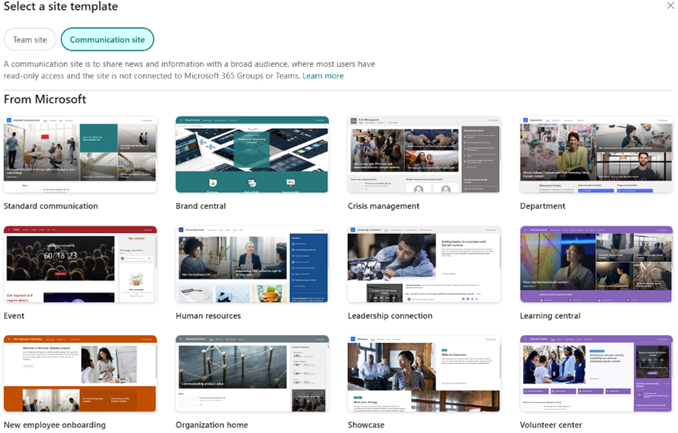
Creating a new site from the ‘Build’ section in the SharePoint app bar.
Creating pages from templates works similarly.
Step 1: Navigate to the site where you want to add a page.
Step 2: Click “New” and select “Page.”
Step 3: SharePoint shows available templates. Choose one that fits your purpose, or start with a blank page.
Step 4: The page opens in edit mode with the template’s structure already in place. Replace placeholder content with your own.
Step 5: Publish when you’re ready.
For templates your organization has created, look in the template gallery within your site. Custom templates appear alongside Microsoft’s built-in options.
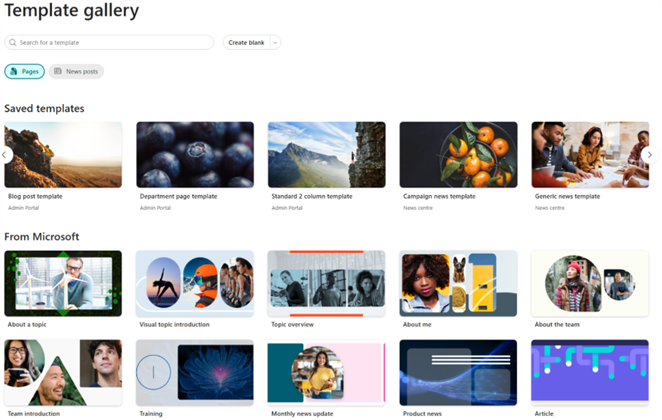
Creating pages and news with options for organization-wide and Microsoft standard templates.
You can save sites and pages as templates for others in your organization to reuse.
In SharePoint Online, site templates can only be created using PowerShell, so communicators will need to partner with their IT team to set up templates that can be reused across your intranet.
Note: Site template capabilities vary depending on SharePoint edition and admin permissions. Communicators should coordinate with IT to confirm what’s possible in your environment.
If you need guidance, you can reach out to us, and our experts at AD UK can help with the creation and deployment of site templates.
Follow these steps to create a reusable page template:
Page templates are site-specific by default. The new SharePoint app bar can now surface page templates from different sites under the Publish section, creating a more unified experience across SharePoint. For organization-wide page templates tailored to intranet use cases, a solution like Fresh, which manages templates centrally, is the most effective option.
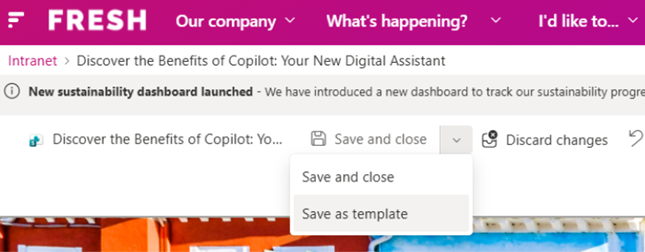
Save a SharePoint page as a page template for reuse.
The “best” template depends entirely on what you’re trying to accomplish. Here are some worth knowing about:
For company news and updates: Communication site templates give you professional layouts designed for broadcasting information. The Showcase template works well for visual content; Topic works well for text-heavy updates.
For team collaboration: Team site templates connect naturally with Microsoft Teams and provide document libraries, notebooks, and collaboration features out of the box.
For departments: Department templates organize information the way teams typically need it: who we are, what we do, our resources, our news. They save significant setup time.
For projects: Project templates include task tracking, status pages, and document organization. They help project managers start quickly without building structure from scratch.
For events: Event templates handle registration, schedules, and speaker information. Much faster than building event sites manually.
Microsoft’s SharePoint look book showcases many templates with live previews. It’s worth browsing to see what’s available.
The homepage sets the tone for your entire intranet. It’s the first thing employees see, and it shapes their perception of whether the intranet is worth their time.
A well-designed homepage template doesn’t just look good. It reflects your organization’s priorities, guides employees to what matters, and creates an experience that feels distinctly yours.
Fresh includes professionally designed homepage templates that demonstrate what’s possible when you combine SharePoint’s capabilities with thoughtful design. Each template is built for a different type of organization and a different set of priorities.
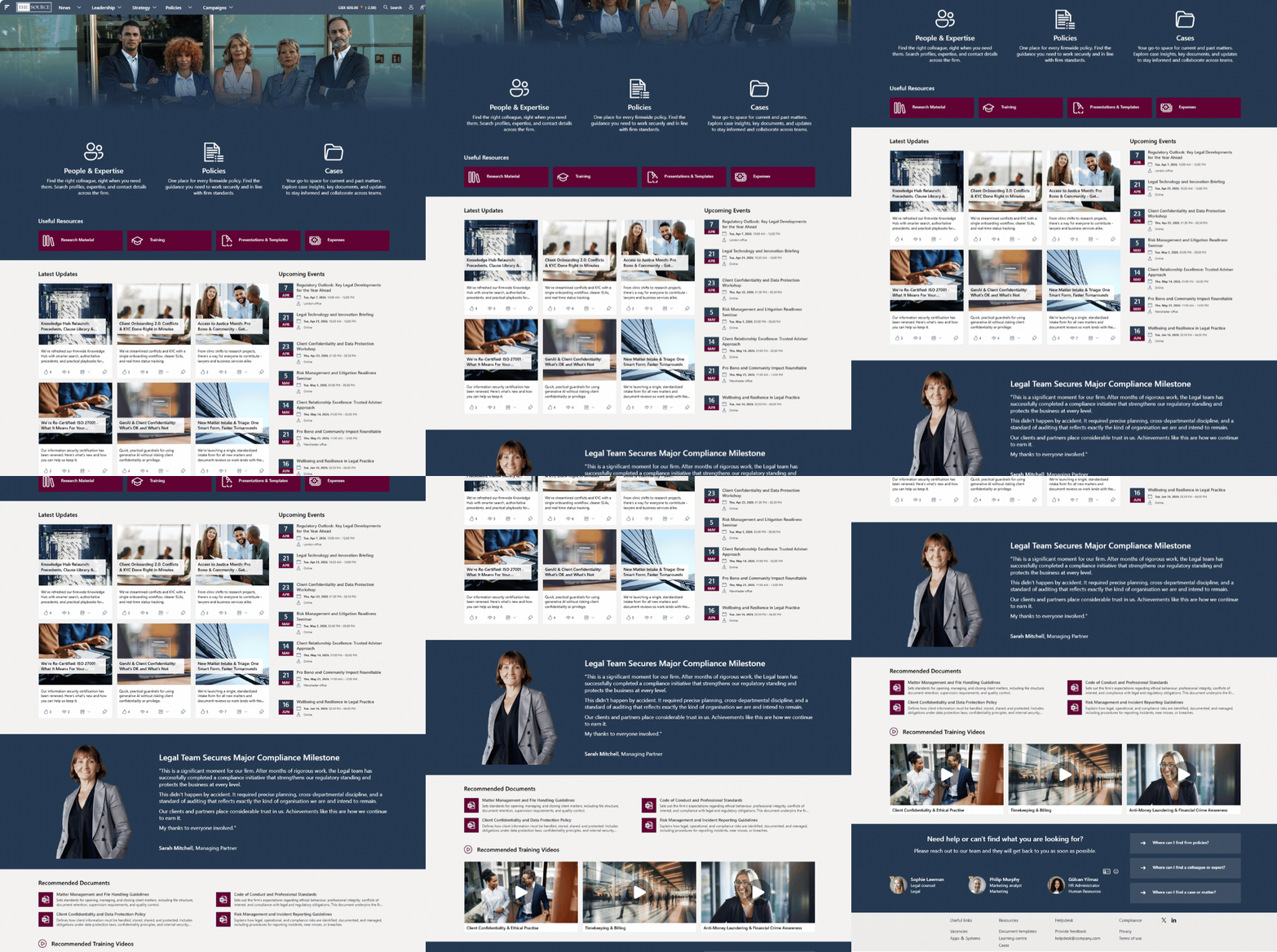
Designed for: Professional services firms like law practices where keeping people informed is critical.
The feel: A newsroom. Clean, authoritative, and current.
Visual approach: Deep navy and slate create a sense of confidence and professionalism. The layout prioritizes news and updates, putting the latest information front and center.
Best for: Organizations where employees need to stay on top of developments, where timely communication matters, and where the intranet should feel like a trusted source of truth.
The Source demonstrates how an intranet can feel like a professional publication rather than a corporate noticeboard.
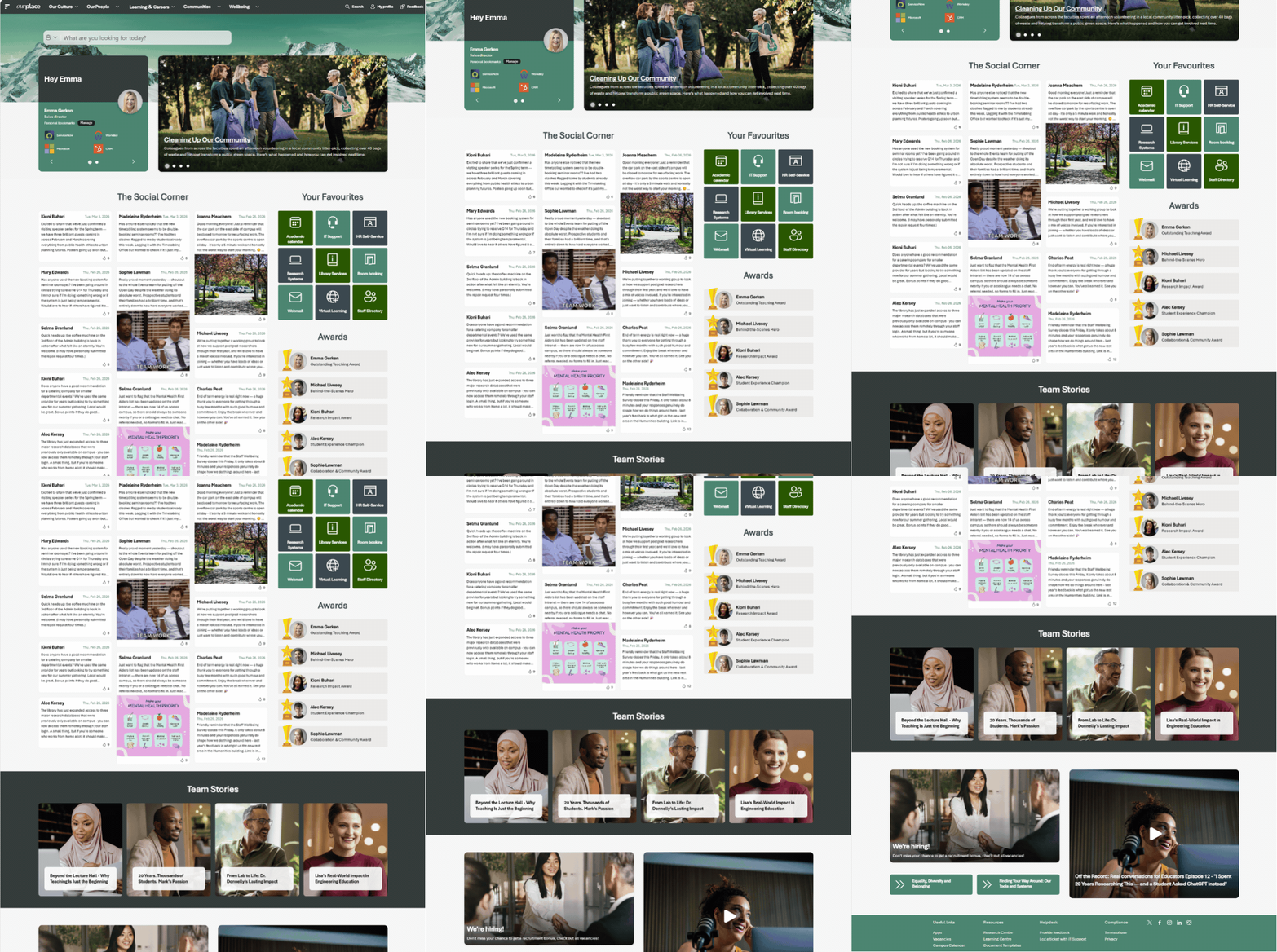
Designed for: Higher education institutions and organizations where community matters as much as information.
The feel: A community noticeboard. Welcoming, inclusive, and warm.
Visual approach: Green tones create a sense of belonging and growth. The layout balances news with people-focused content, celebrating the community alongside the communications.
Best for: Organizations where culture is a priority, where employees span diverse roles and locations, and where the intranet should help people feel connected to something larger than their immediate team.
Our Place shows how an intranet can build belonging rather than just broadcast information.
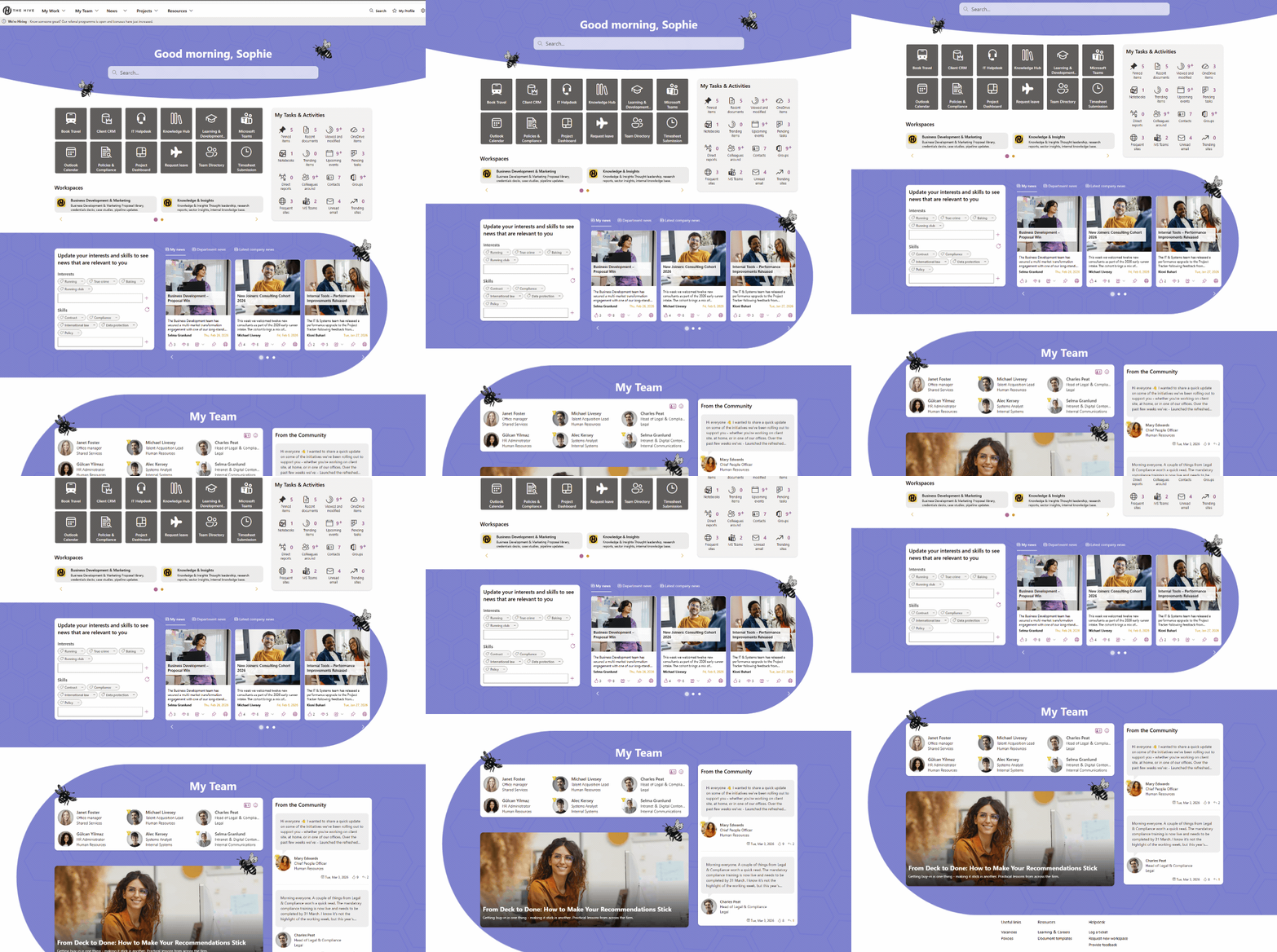
Designed for: Management consultancies and professional environments where efficiency is everything.
The feel: A personal workspace. Focused, organized, and purposeful.
Visual approach: Light purple creates a sense of control and clarity. The layout emphasizes quick access to tools, tasks, and resources, minimizing the distance between landing on the homepage and getting to work.
Best for: Organizations where employees are busy, where time is at a premium, and where the intranet should help people accomplish tasks rather than consume content.
The Hive demonstrates how an intranet can feel like a productivity tool rather than another thing to check.
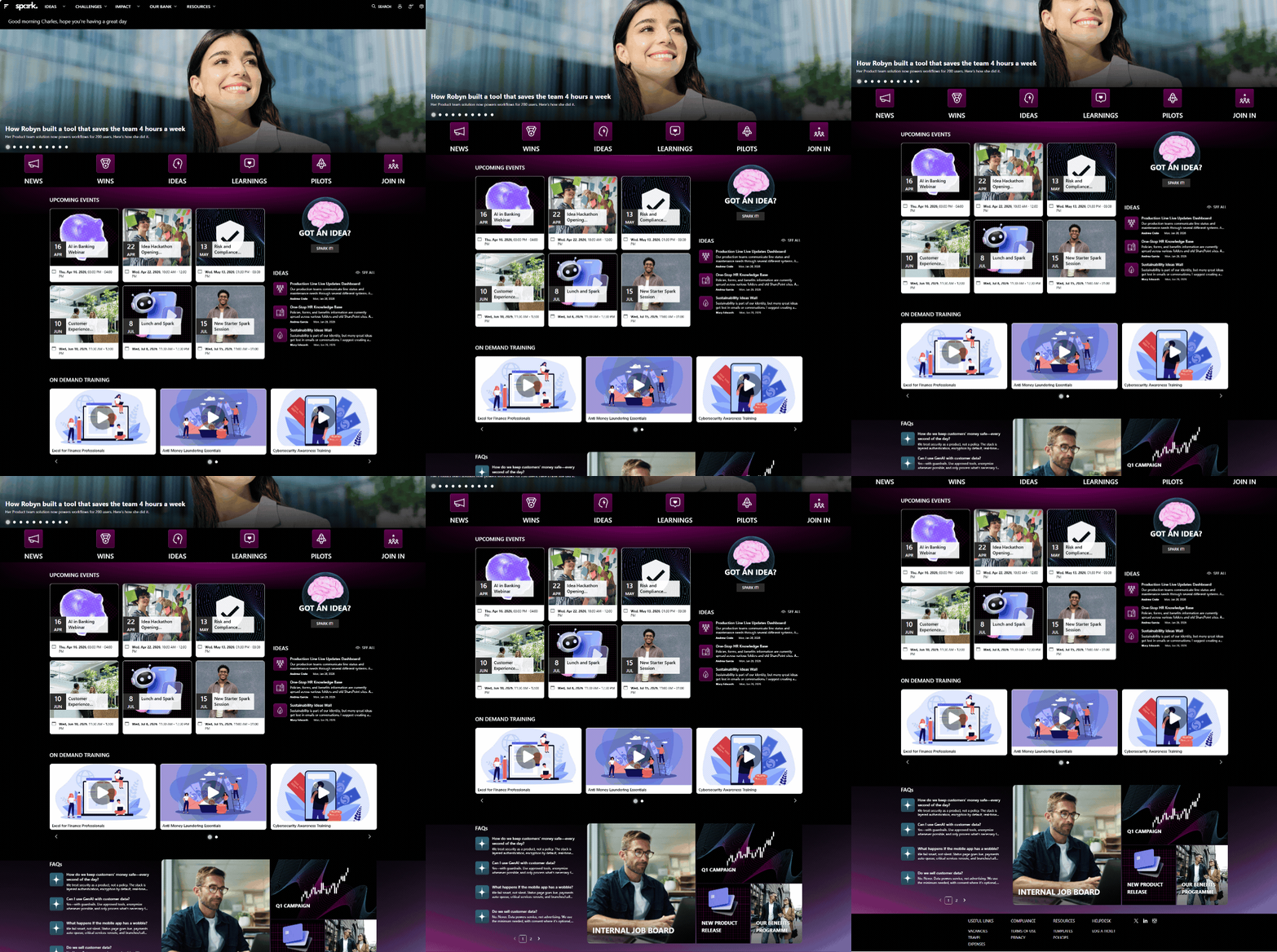
Designed for: Banking and financial services organizations embracing transformation and new thinking.
The feel: An innovation lab. Bold, energetic, and forward-looking.
Visual approach: Black with neon accents creates excitement and signals that this isn’t a traditional corporate environment. The layout highlights new initiatives, ideas, and opportunities alongside essential information.
Best for: Organizations undergoing transformation, where innovation is a strategic priority, and where the intranet should inspire as well as inform.
Spark shows how an intranet can energize employees rather than just serving as an information repository.
These four examples illustrate an important point: there’s no single “best” intranet design. The right template depends on who you are and what you’re trying to achieve.
Most organizations have elements of all four priorities. The art is in finding the right balance and emphasis for your specific context.
Need help finding the right fit? Let’s chat, our experts can guide you in choosing and customizing the template that best supports your organization’s goals.
A template saves time only if it’s close to what you need. Starting with the wrong template can mean more work than starting fresh. Take time to preview options before committing.
Templates are starting points, not finished products. Replace all sample content, adjust navigation to fit your needs, and remove any sections that don’t apply. A customized template looks intentional; a barely-modified template looks lazy.
When multiple teams use the same templates, your SharePoint environment feels more cohesive. Consider establishing standard templates for common use cases so sites across your organization share similar structure.
If you create custom templates, review them periodically. As your organization’s needs evolve, templates should evolve too. Outdated templates create outdated sites.
When creating custom templates, write brief guidance explaining when to use each one and how to customize it effectively. This helps people choose correctly and get the most from what you’ve built.
Microsoft’s built-in options: Available directly when creating new sites or pages.
SharePoint look book: Preview templates and apply them to your environment.
Fresh templates: Fresh can include professionally designed templates specifically for internal communications, including the homepage designs featured above. These go beyond Microsoft’s built-in options, with layouts optimized for employee engagement across different industries and organizational priorities.
Third-party providers: Various vendors offer SharePoint template packages. Quality varies significantly, so evaluate carefully before purchasing.