SharePoint Search: How to help employees find what they need
SharePoint search is genuinely powerful. It can find documents, pages, news, and even people across your entire organization. The question is: are you getting the most from it?
Like any sophisticated tool, SharePoint search works best when you understand how it thinks. A few adjustments to how you search — and how your content is organized — can transform the experience from “it’s fine” to “this is actually brilliant.”
What you’ll learn:
- How SharePoint search works and what makes it tick
- Practical tips for finding documents faster
- How to configure search for better results across your organization
- What Fresh does to make search even more powerful
What is SharePoint search?
SharePoint search is Microsoft’s built-in system for finding content across your sites, libraries, and lists. It crawls your content, indexes it, and returns results based on relevance algorithms that consider keywords, metadata, file properties, and user behavior.
This means you can find content from anywhere in your SharePoint environment — documents, pages, news articles, even colleagues’ profiles. Enterprise search in SharePoint is designed to connect people with information across an entire organization.
When configured well and paired with organized content, SharePoint search is remarkably capable. The key is understanding how to help it help you.
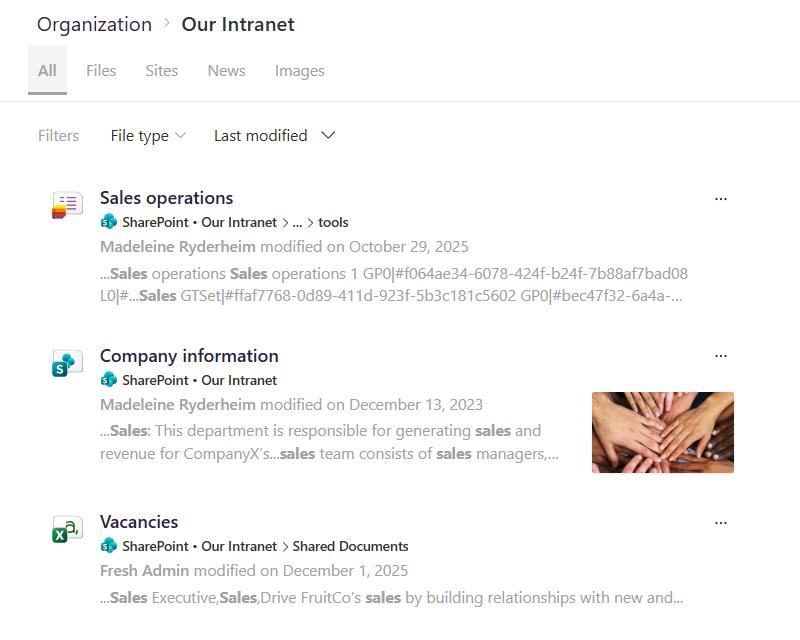
Why does SharePoint search matter?
Finding information quickly makes a real difference to productivity. When employees can locate what they need in seconds rather than minutes, they spend more time doing actual work. They trust the intranet as a source of truth. They stop creating workarounds.
Good search transforms your intranet from a place where content lives to a place where content gets found. That’s the difference between an intranet people tolerate and one they genuinely rely on.
For communicators, this has real implications. When search works well, your carefully crafted content actually reaches people. News gets read. Policies get followed. Important updates don’t disappear into the void.
Basic search vs. advanced search in SharePoint
Most people search the same way they use Google: type a few words, hit enter. That works well for straightforward queries. But SharePoint offers more sophisticated options that can dramatically improve your results.
Basic search
The search box at the top of any SharePoint site accepts simple keyword queries. Type your search terms, and SharePoint returns results ranked by relevance — documents, pages, news articles, and people profiles.
Basic search handles common queries well, especially when your content uses clear, descriptive naming.
Advanced search in SharePoint
SharePoint supports search operators and filters that add precision. You can narrow results by file type, date modified, author, or specific site. Quotation marks search for exact phrases. The minus sign excludes terms.
For example: searching “quarterly report” filetype:pptx finds PowerPoint presentations containing that exact phrase. Adding -draft excludes anything with “draft” in the title.
These refinements are genuinely useful — and most employees never learn they exist. A brief training session can unlock a lot of value.
Getting better results from SharePoint search
If search isn’t returning what you expect, a few common factors might be at play. Understanding them helps you work with the system more effectively.
Understanding the crawl process
SharePoint search relies on a crawl process, a background scan that indexes new and updated content. There’s a short delay between uploading content and it becoming searchable. In SharePoint Online, this typically takes minutes to hours.
If you’ve just uploaded something and can’t find it, give it a moment. The crawler is on its way.
Understanding search scope
SharePoint search respects scope. If you’re searching within a specific list, library, site, or hub, results are limited to that area. That’s useful for focused searches, but it can be confusing if you’re expecting broader results.
Knowing how to switch to a wider search scope (searching across your whole intranet rather than just the current site) helps employees find content wherever it lives.
Understanding permissions
SharePoint search respects permissions, which is exactly what you’d want for security. If someone doesn’t have access to a document, it won’t appear in their results. This is working as designed, but it’s worth knowing when you’re troubleshooting “missing” content.
Understanding how keywords work
SharePoint search looks at titles, content, and metadata. If you’re searching for “employee handbook” but the document is titled “staff manual” with no matching metadata, you might not find it immediately.
This is where good naming conventions and metadata really pay off, they create multiple pathways to the same content.
Tips for getting more from SharePoint search
These adjustments help search work brilliantly for everyone in your organization.
Use descriptive file names
“Document1.docx” doesn’t tell search (or humans) much. “2026-Q1-Marketing-Budget.xlsx” is immediately findable. Descriptive names create more keyword matches and make results lists scannable.
Add metadata deliberately
SharePoint search indexes metadata — tags, categories, and custom properties attached to documents and pages. Adding relevant metadata creates alternative search paths beyond the filename.
The key is consistency. A clear, simple taxonomy applied reliably beats elaborate tagging that nobody maintains.
Set up Acronyms, Bookmarks, and Q&As
SharePoint lets administrators configure acronyms, bookmarks, and Q&As that surface with higher relevance for common queries. Partner with IT to set these up for frequently searched terms, it’s a low-effort way to make search feel smarter.
Configure promoted results
Administrators can promote specific content for common queries. If employees frequently search for “expenses” looking for the expense policy, you can ensure that document appears at the top.
This requires ongoing maintenance as content changes, but for high-value content, it’s worth the effort.
Train people on what’s possible
Most search frustration comes from not knowing the options. A short guide covering exact phrase search, file type filters, date ranges, and search scope empowers employees to find things themselves.
Keep content current
Search results are only as good as the content they point to. Regular content reviews of archiving outdated documents, updating old pages, removing duplicates will keep search results relevant and trustworthy.
When employees click a search result and find current, accurate information, they learn to trust search. When they find outdated content, they learn to work around it.
Key features of SharePoint search
Beyond keyword matching, SharePoint search includes capabilities worth knowing about.
Search result previews
Hovering over results often reveals a preview, a snippet of content, key metadata, and sometimes a thumbnail. This helps identify the right document without opening multiple files.
People Search
SharePoint search finds colleagues too. Searching for someone’s name returns their profile, showing their role, contact details, expertise, and recent documents. Useful when you need to find the right person, not just the right file.
Search refiners and filters
The search results page offers refiners, options to narrow results by content type, file type, author, date, or site. These filters turn a long list into something manageable.
Configuring search in SharePoint
For administrators, several configuration options can improve search quality across your environment.
Search schema settings control which properties are crawled and searchable. Custom result sources can focus searches on specific content. Query rules can promote results or trigger specific behaviors for particular queries.
These options are powerful. If you’re not comfortable with search administration, a SharePoint-native intranet solution, like Fresh, can handle this complexity while giving you even more capable search.
Getting even more from search with Fresh
Fresh is a SharePoint-native intranet that provides an AI-powered search experience, helping employees find answers rather than just results.
With SharePoint alone: Search works well, especially with organized content and good configuration. You get keyword matching, filters, and result previews.
With Fresh: Search is scoped and designed around how communicators organize content. AI helps employees find information and colleagues more intuitively. The experience feels natural because the system understands intranet content — news, policies, people — rather than treating everything the same.

Fresh builds on SharePoint’s search foundation, making it even more powerful for organizations where finding information quickly really matters.
FAQ
How do I use SharePoint search effectively?
Start with specific terms rather than vague ones. Use quotation marks for exact phrases. Understand search scope — know when you’re searching a site versus your whole intranet. Filter by content type or date when results are plentiful. These techniques transform search into a reliable tool.
Can I customize SharePoint search results?
Yes, with appropriate permissions. Administrators can promote specific results, configure acronyms and bookmarks, and adjust which content appears in search. End users can filter and refine their own results.
Why can’t I find a document I know exists in SharePoint?
A few possibilities: it may not have been crawled yet (give it time), you may not have permission to see it, your search may be scoped to a specific site, or your keywords may not match the document’s title, content, or metadata. Understanding these factors helps you find what you need.
How do I optimize SharePoint search for better results?
Focus on content organization: descriptive filenames, consistent metadata, and logical structure. Configure promoted results for frequently searched content. Train employees on search techniques. And consider whether Fresh might deliver even more powerful search.
Help employees find what they need
SharePoint search has real depth. With organized content, thoughtful configuration, and a bit of user training, it becomes a genuinely powerful tool for your organization.
If you want to take search further, Fresh might be worth a look. A SharePoint-native intranet with AI-powered search that’s built to help employees find answers, not just results.
Because the best search is the one people actually trust.