
Why a digital workspace is better than a custom made portal
Traditionally speaking, companies have custom built their Intranets using platforms such as SharePoi...
Approvals are part of everyday working life. Policies. Budgets. Designs. Contracts. You name it. And when you’re juggling all of that, the last thing you need is a clunky approval process that slows everything down.
That’s where a SharePoint approval workflow helps.
SharePoint provides clear, structured approval workflows that make sign-off faster and easier for everyone involved. And when you manage approval in SharePoint through Fresh, your intranet becomes the place where work moves forward, not where it stalls.
This guide explains what approval workflows are, how approval workflow SharePoint options work and how to set them up in a way your team can rely on.
Let’s be honest. Approvals can easily become a bottleneck. You lose track of who needs to sign off. You chase people. Someone edits the wrong version. Suddenly, there are multiple copies of the same document and no clear answer on which one is approved.
A well-designed SharePoint approval workflow helps you avoid that by introducing a clear, consistent process.
Here’s what that gives you:
Everyone can see what’s approved, what’s pending and what needs action.
Every document follows the same steps, so nothing gets missed.
Approvers can respond directly in SharePoint or Teams, without switching tools.
You have a clear record of who approved what, and when.
When approval workflows in SharePoint are easy to follow, work flows more smoothly. Your team spends less time chasing sign-off and more time focusing on what matters.
SharePoint offers a few different ways to manage approvals, depending on how simple or structured your process needs to be.
Below is a practical overview of how approval workflow SharePoint options work without unnecessary complexity.
This option works well for straightforward document sign-off.
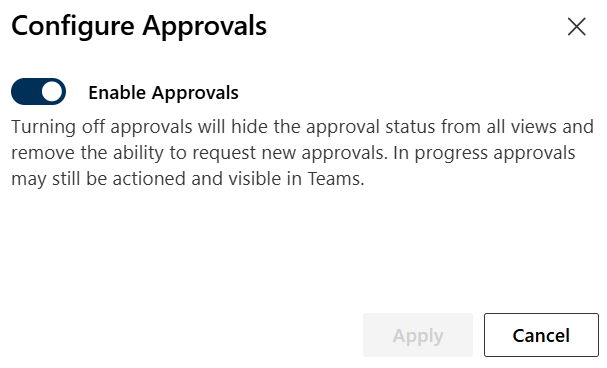
SharePoint automatically adds an approval status column to your library
It’s simple, clear and removes the need for long email chains.
For more complex requirements, Power Automate allows you to automate approval in SharePoint with greater flexibility.
You don’t need to build everything from scratch. Power Automate templates provide a solid starting point, and your IT partner can support you throughout the process.
SharePoint pages come with a built-in approval workflow process that you can enable via the Site Pages settings under Versioning settings → Content approval.
After you enable the page approval workflow, new and updated pages will no longer be published immediately, and authors must submit their pages (news posts or content pages) for approval. The page will only become available to readers once it was approved.
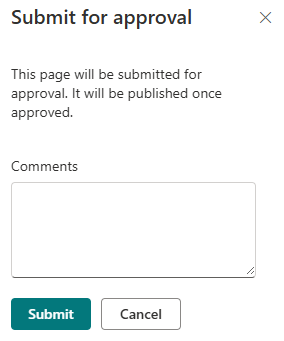
The built-in approval workflow for SharePoint pages is simple and doesn’t support notifications or multi-step approvals. You can use Power Automate for more complex approval scenarios.
A good approval workflow in SharePoint should support your team, not slow them down. These tips help keep things running efficiently.
Clear naming, sensible metadata and versioning make SharePoint approval processes easier to manage.
If order doesn’t matter, let approvers review at the same time.
Limit editing during approval to avoid changes mid-process.
Reminders, routing and escalations are better handled automatically.
As your organization changes, your approval workflows in SharePoint should evolve too. The goal is consistency without unnecessary overhead.
Once the basics are working well, there are a few ways to extend your SharePoint approval workflow.
Make Teams your approval touchpoint: Approvers can act where they already work.
Use smarter routing rules: Direct approvals based on department, document type or metadata.
Trigger next steps automatically: After approval, you can:
All without manual intervention.
Bring approval workflows into Fresh: When approval in SharePoint is surfaced through your intranet, people know where to go and what to do. Everything sits in one familiar place.
Imagine you’re updating a Health & Safety policy.
There’s no confusion about which version is current, and you have a clear audit trail. If employees then need to read and acknowledge the policy, Fresh provides these options so you can extend the process.
You can use built-in approvals or Power Automate templates, depending on your needs.
They provide structure, visibility, speed and accountability from the moment a document or page is submitted for approval.
Yes. Standard SharePoint approval workflows already provide automation. If you want to build more complex approval workflows in SharePoint, Power Automate supports reminders, escalations, conditional routing, and more.
Yes. Intranet platforms like Fresh can enhance approval in SharePoint by bringing workflows, visibility, and governance together in one place.
Approvals in SharePoint don’t need to be complicated or manual. Used well, a SharePoint approval workflow gives you reliable, transparent processes your teams can trust. When those workflows are brought into Fresh, they become part of a wider intranet experience that helps people work with clarity and confidence.
Many organizations choose to work with a Fresh partner to design and implement approval workflows in SharePoint that fit their processes and scale with their needs.
Traditionally speaking, companies have custom built their Intranets using platforms such as SharePoi...